FCS Starter Kit
FCS comes with a starter kit for all trial and licensed users. With the starter kit you should be able to create 3D facial animation, and experience the entire workflow using FCS.
Content of FCS Starter Kit
FCS Starter Kit includes the following:
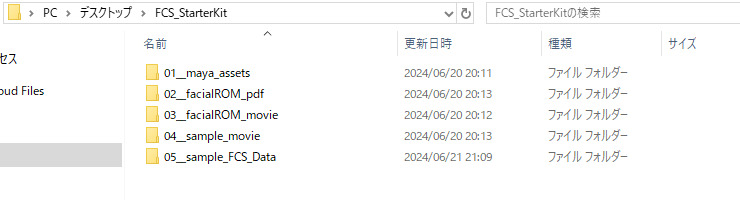
3D model in Maya
PDF including the recommended Range of Motion (ROM)
Facial ROM animation
Sample video for generating facial animation
Sample FCS session with retargetted data
Note
Some of the content requires external plugins rendering
1: 3D model in Maya
Maya folder contains the following 2 models ;
AVERAGE HUMAN
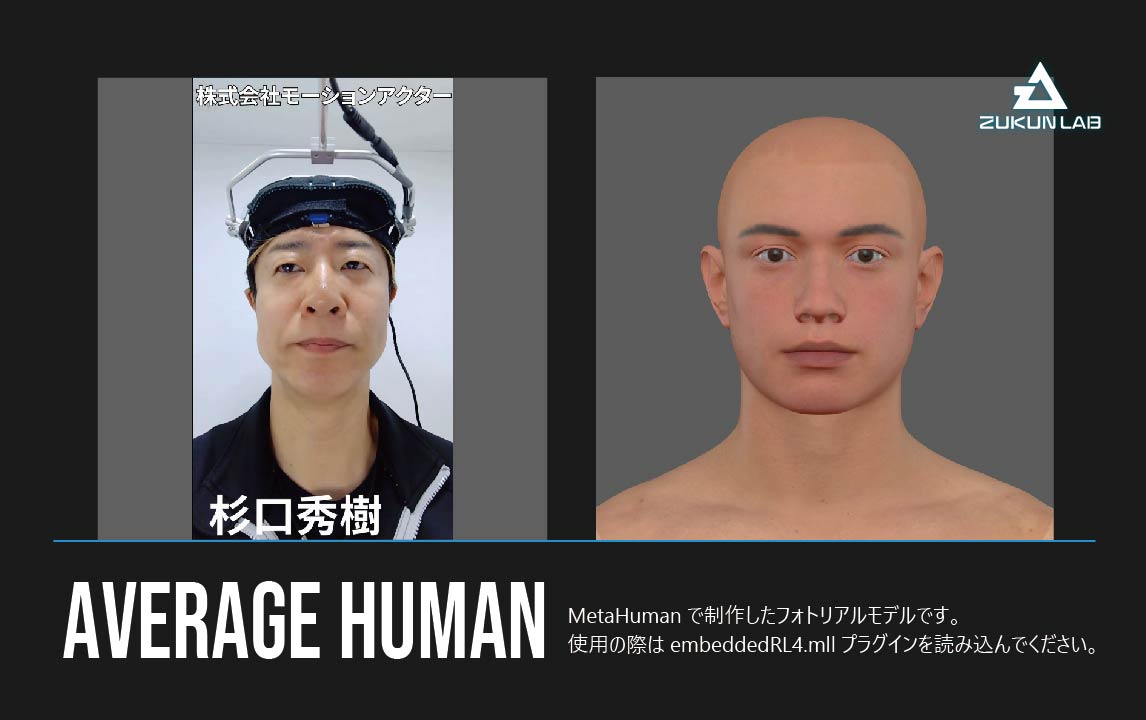
AVERAGE HUMANとは、東映ツークン研究所が長年培ってきたデジタルヒューマン技術(実在の人物をCGで再現する技術)と、Unreal Engineを開発するEpic Games社が提供するMetaHuman(デジタルヒューマン作成ツール)を組み合わせて制作された3Dモデルです。
MetaHumanに関する詳細は、Epic Games社が提供するMetaHuman紹介ホームページをご確認ください。
AVERAGE HUMANは、MetaHuman標準のフェイシャルコントローラを使ってアニメーションさせることができます。
MetaHumanフェイシャルコントローラの使い方は、Epic Games社が提供するこちらのYouTube解説動画をご確認ください。
Please read the readme.txt included in your starter kit.
Note
AVERAGE HUMANをご利用される際は、Unreal Engineでの確認 - レンダリングが前提となります。
事前にUnreal Engineのインストール、確認用プロジェクトの作成をお願いいたします。
Unreal Engineに関する詳細は、Epic Games社が提供するUnreal Engine紹介ホームページをご確認ください。
Caution
You cannot use render this rig in Maya or Unity* as per the Epic games license. *Game engine created by Unity Technologies
NIKE SHIKINO
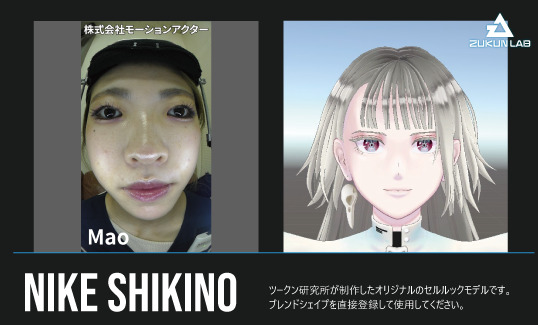
NIKE SHIKINO is an original cel-shaded 3D model created by Zukun Laboratory. The model’s face is equipped with blend shapes that conform to Apple ARKit standards, allowing for animation by changing the values of each target shape *Developed and provided by Apple, this AR framework adopts 52 expression target shapes in its facial tracking system.
NIKE SHIKINO is compatible with Maya, Unreal Engine, and Unity. Please make sure to read the included readme.txt file before use.
2: List of Facial ROM Expressions (PDF)
In video analysis using facial capture, we can improve the efficiency of analysis by understanding the intensity limits of the expressions that the recorded person can make. The series of expression patterns aimed at capturing the range of motion (ROM: Range of Motion) of various facial parts, such as the eyebrows, eyes, and mouth, is called Facial ROM Exercises. In this starter kit, we have included a PDF containing a list of approximately 50 expression patterns that Zukun Laboratory actually uses in our facial capture recordings.
3: Facial ROM Video
This is a video featuring Facial ROM patterns. Please import it into FCS for use.
4: Video Analysis - Sample Video for Animation Output
This is a sample video used for video analysis. Please import it into FCS for use.
サンプル動画の内容について
AVERAGE HUMAN:感情の異なる、全9種類のセリフ動画*(セリフ自体は全て同一です)
NIKE SHIKINO: A total of 9 different emotion-based dialogue videos (the dialogue itself is the same in all videos)
*Recorded with the cooperation of Hideki Sugiguchi / Mao from Motion Actor Co., Ltd.
5: Sample Data of an FCS Session with Created Profiles
動画解析をお試しいただく際の参考例として作成された、AVERAGE HUMAN&NIKE SHIKINOのFCS Sessionデータです。
どちらもフェイシャルROM体操動画から約50程度のProfileが既に作成済みのため、サンプル動画を読み込んでProfile作成をしていただくことで、ゼロからSessionを作成することなくFCSをご体験いただけます。
Warning
Although you can perform video analysis without creating profiles, the accuracy will not be sufficient. To improve accuracy, you need to create at least one profile from the sample video. For detailed instructions on how to create profiles, please refer to the Profile Creation Page.
In the sample data, FCS Session is already placed within a pre-made FCS session folder structure. For more details on the FCS session folder structure, please refer to Session Creation or Opening Page.
Upon downloading, the paths for the Maya data and sample videos will be different, so they need to be reconfigured.
Please refer to the following steps for how to reconfigure the Maya data paths and import the sample videos.
*Maya data and sample videos do not necessarily need to be placed within the FCS Session folder structure.
Mayaデータのパス再設定方法
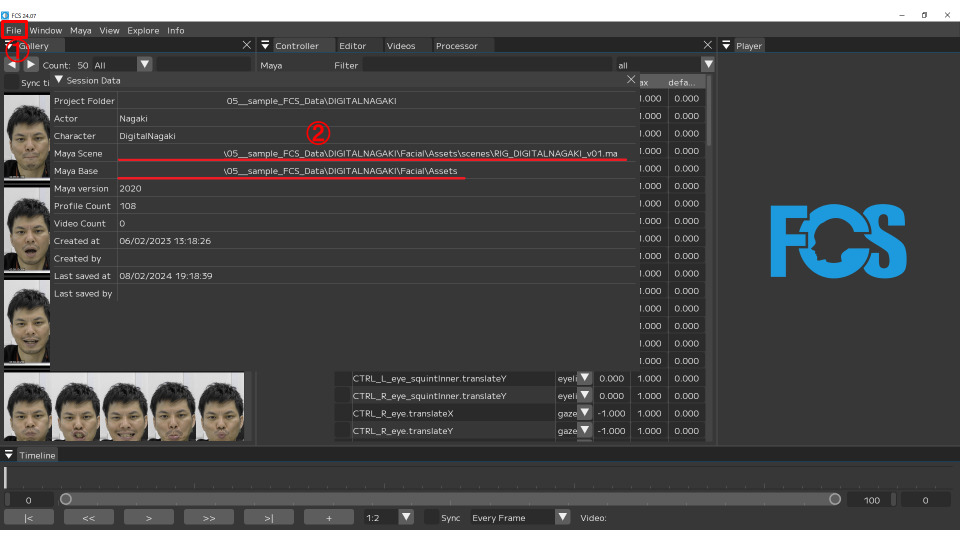
For the Maya data, both the Maya Scene path and the Maya Base path need to be reconfigured in FCS. You can reconfigure both paths using the same steps outlined below.
① After launching FCS and opening the session, go to File → Session → Info to open the Info window. ② Right-click in the field where the current path is displayed, then click the Edit button. ③ In the Change window, click the Browse button to open the file dialog. ④ Select the relevant file within the FCS session folder structure and click the Open button. ⑤ After confirming that the path has been updated in the Change window, click the Save button.

サンプル動画のインポート方法
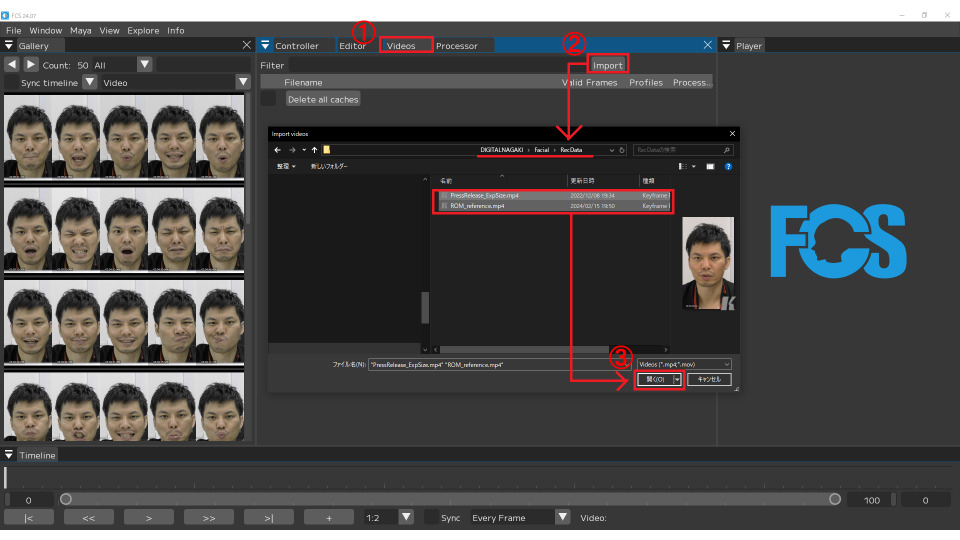
You can import the sample video by following the steps below.
① After launching FCS and opening the session, open the Videos window. ② Click the Import button to open the file dialog. ③ Select the relevant file within the FCS session folder structure and click the Open button.