Preferences (File ▶ Settings Window)
This section describes the settings menu in the File menu for configuring FCS global behavior, path settings, and detailed customization.
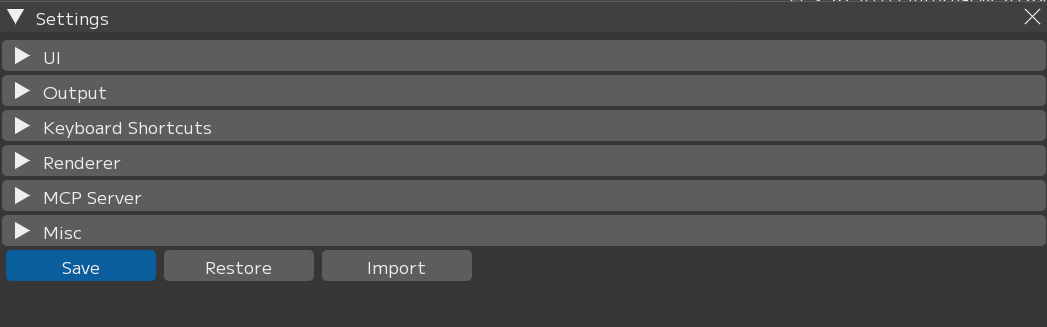
[Save]: Save settings. * Restart FCS after saving for the settings to take effect.
[Restore]: Reset settings to default and restart FCS
[Import]: Import settings from another version and restart FCS.
Load the my_conf.yaml file located at C:\Users[username].fcs\Cortado[FCS version].
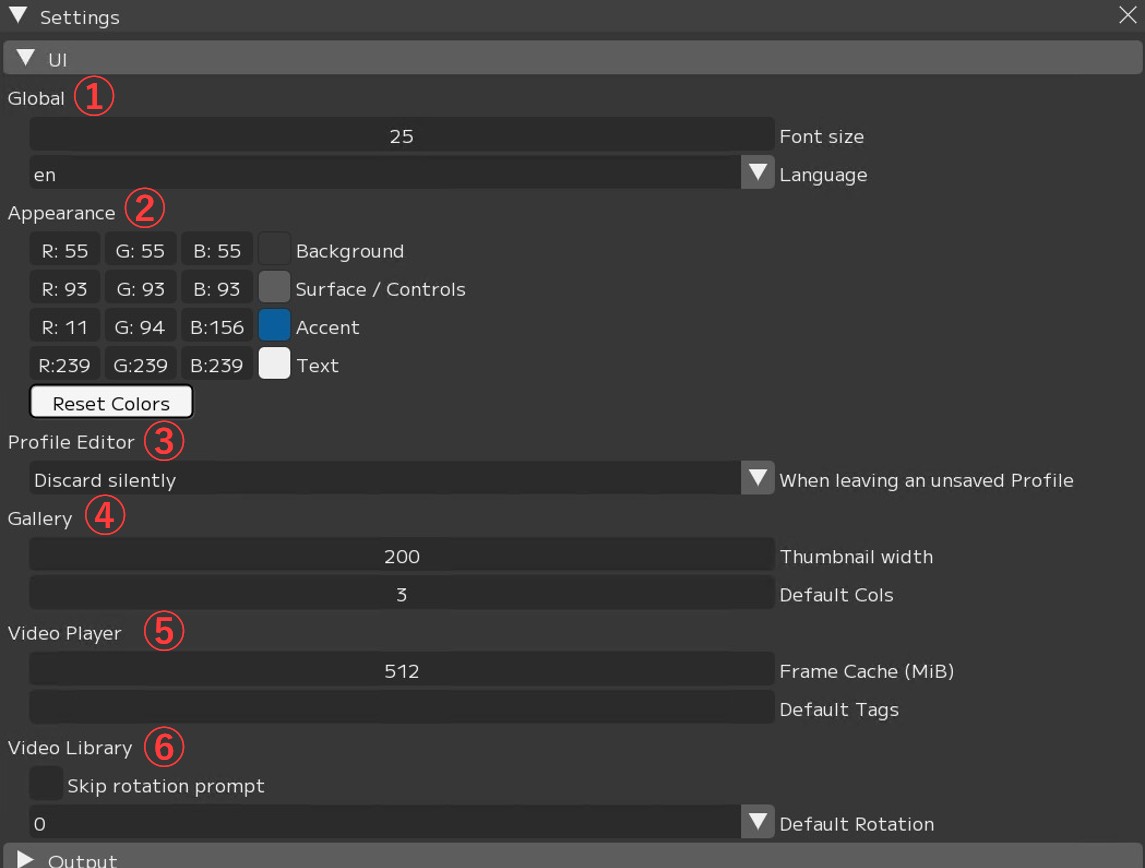
① Global
② Appearance ※再起動不要
・Background:背景カラーの設定
・Surface/Conrtols:ボタンなど操作パネルカラーの設定
・Accent:アクセントカラーの設定
・Text:テキストカラーの設定
・【Reset colors】:UIの色変更をリセット
③ Profile Editor:未保存のProfileがある場合、別の画面へ移動する際の挙動を選択
・Warn and keep editing:警告を表示して編集を続ける
・Discard silently:警告なしで破棄する(保存せずに閉じる)
・Auto-save:自動保存する
④ Gallery
・Thumbnail width:ギャラリーに表示されるプロファイル画像の横幅
・Default Cols:ギャラリーのデフォルトの列数
⑤ Video Player
・Cache Frame Max:メモリにキャッシュするフレームの最大値
・Default Tags:デフォルトで付与するタグ名
Note
The higher the Cache Frame Max value, the more memory is consumed.
As a guideline, approximately 64 GB is used per 10,000 frames at Full HD resolution.
Setting -1 saves cache without limit.
Use this setting only when sufficient memory is available.
⑥ Video Library
・Cache Frame Max:Videoインポートで回転処理の設定画面を表示するかどうか
・Default Rotation:Videoインポート時のデフォルトの回転値(0=回転なし)
You can change the default settings for animation output and playblast output.
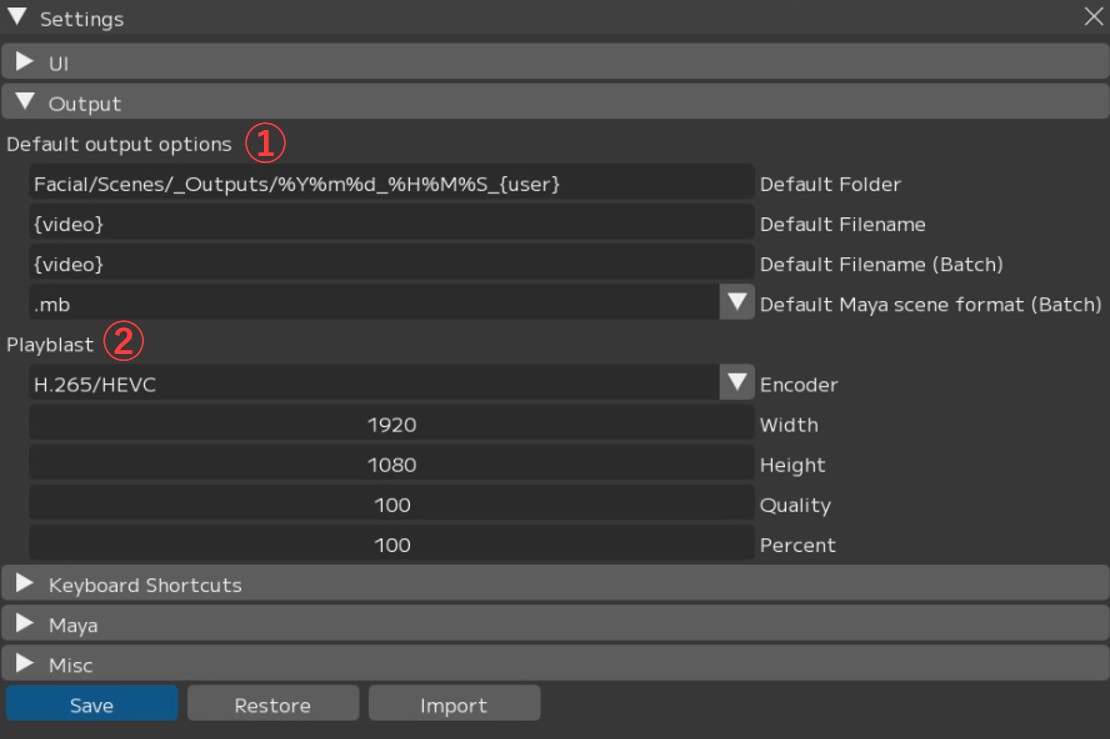
① Default output options: Default settings for animation output
- Default Folder: Default output folder
- Default Filename: Default file name
- Default Filename(Batch): Default file name for batch output
- Default Maya scene format(Batch): Default Maya save format
② Playblast: Default settings for playblast output
- Encoder: Playblast encoding settings
- Width: Playblast width
- Height: Playblast height
- Quality: Playblast quality
- Percent: Playblast resolution
You can configure keyboard shortcuts for use with FCS.
Up to 3 buttons can be registered for simultaneous key presses: 1 key + 2 modifier keys.
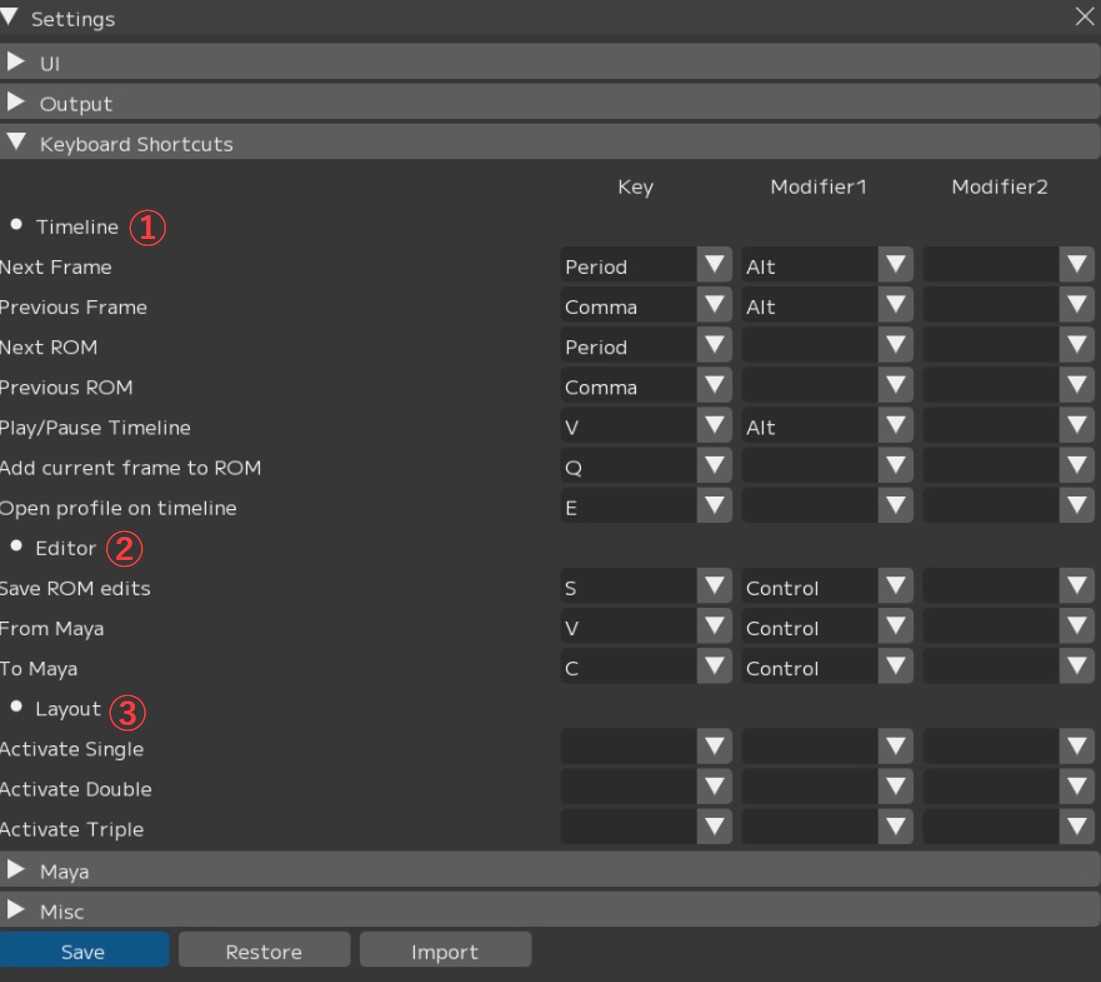
① Timeline
- Next Frame: Go to the next frame
- Previous Frame: Go to the previous frame
- Next ROM: Go to the next profile
- Previous ROM: Go to the previous profile
- Play/Pause Timeline: Play / pause the timeline
- Add current frame to ROM: Add the current frame as a profile
- Open profile on timeline: Open the video of the currently selected profile
② Editor
- Save ROM edits: Save profile edits
- From Maya: Load facial expression values from Maya
- To Maya: Send facial expression values to Maya
③ Layout
- Active Single: Switch to Single preset layout
- Active Double: Switch to Double preset layout
- Active Triple: Switch to Triple preset layout
Renderer(Maya / blender)との接続に関する設定項目です。
Maya
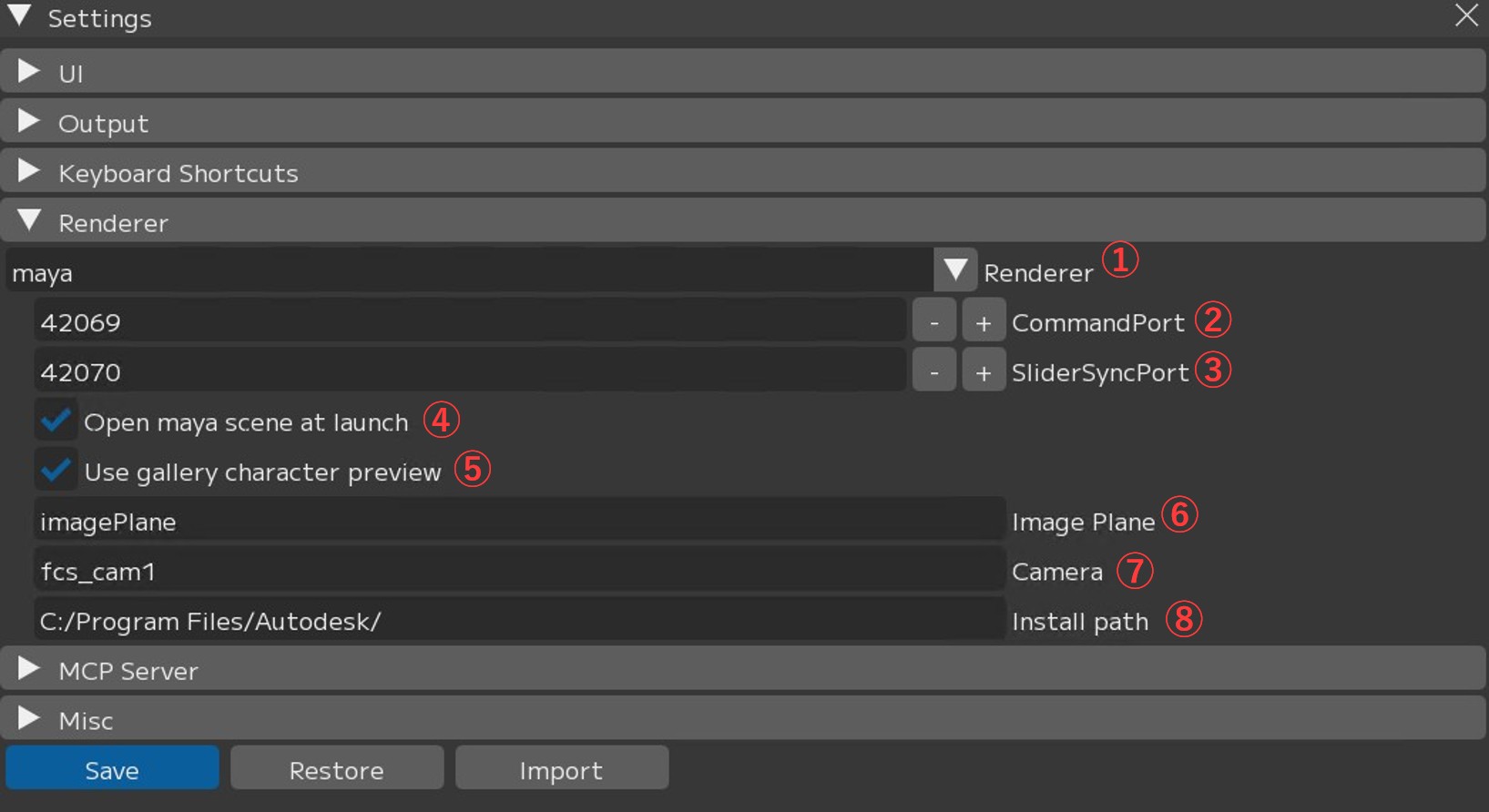
① Maya ▼ :設定するRendererの切り替え
② CommandPort:接続に使用するコマンドポート
③ SliderSyncPort:Mayaのタイムラインを取得するコマンドポート
④ Open maya scene at launch:Launch Maya時に登録したMayaシーンも開くか
⑤ Use gallery character preview:ギャラリーウィンドウのキャラクター表示切替機能を使用する
※再起動不要
⑥ Image Plane:イメージプレーン名 ※再起動不要
⑦ Camera:カメラ名 ※再起動不要
⑧ Install path:Mayaのインストール先 ※再起動不要
blender
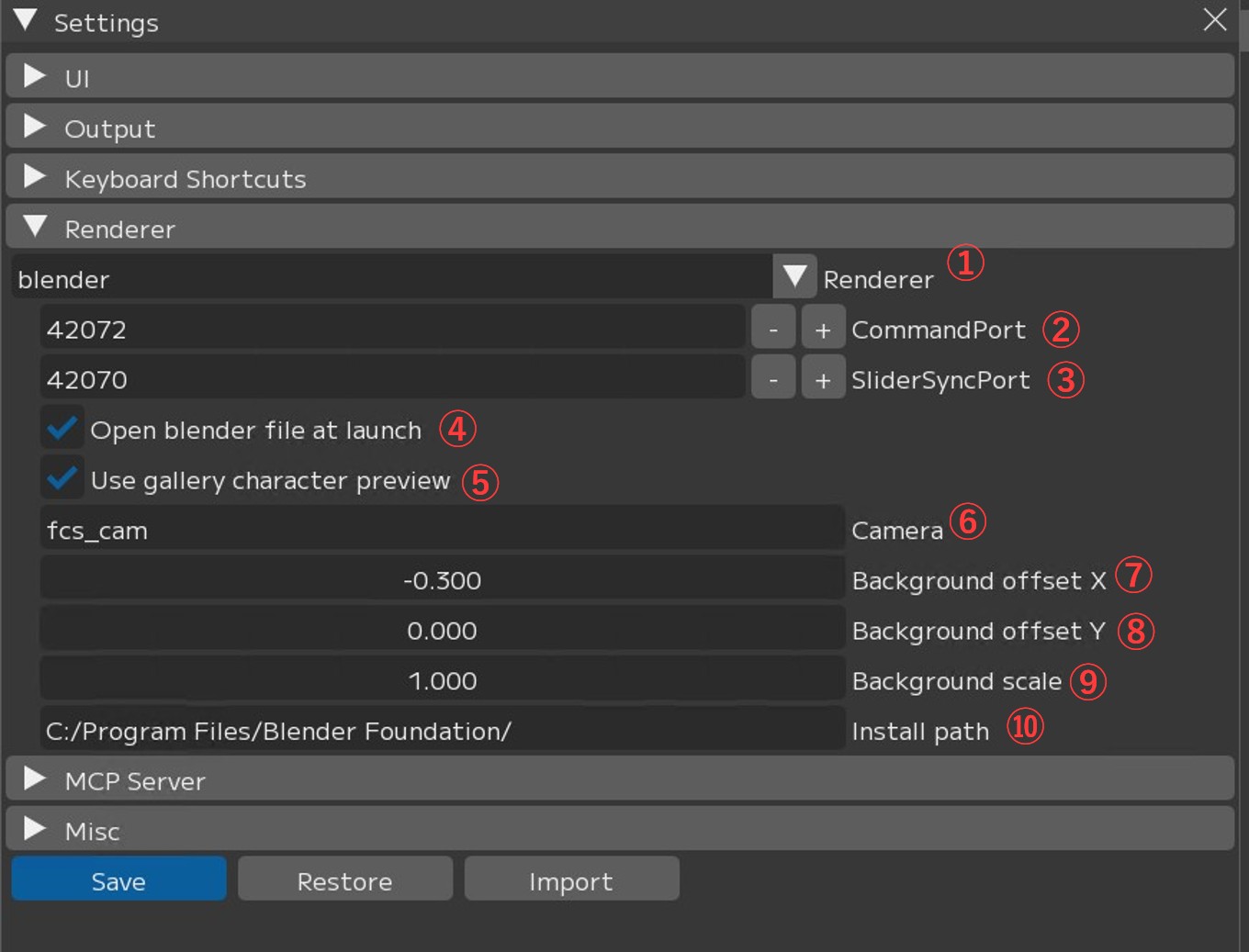
① blender ▼ :設定するRendererの切り替え
② CommandPort:接続に使用するコマンドポート
③ SliderSyncPort:blenderのタイムラインを取得するコマンドポート
④ Open blender scene at launch:Launch blender時に登録したblenderシーンも開くか
⑤ Use gallery character preview:ギャラリーウィンドウのキャラクター表示切替機能を使用する
※再起動不要
⑥ Camera: Camera name. * No restart required
⑦ Background offset X:背景のオフセット値(X)※再起動不要
⑧ Background offset Y:背景のオフセット値(Y)※再起動不要
⑨ Background scale:背景のスケール値 ※再起動不要
⑩ Install path:blenderのインストール先 ※再起動不要
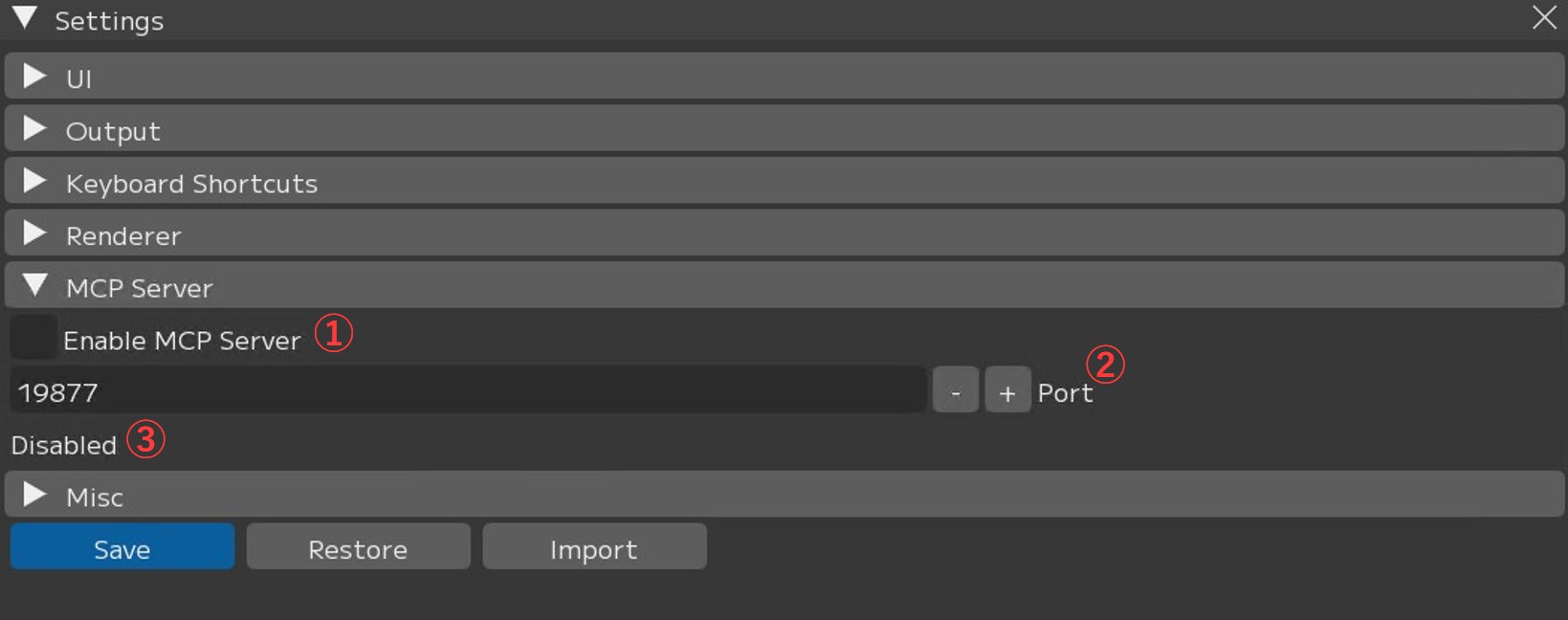
こちらの機能の設定方法・詳細についてはテクニカルマニュアル/AIエージェントによるFCSの操作(MCP)を参照ください。
① Enable MCP Server:MCPサーバーの有効化設定
② Port:ポート数
③ ※ステータスが表示されます
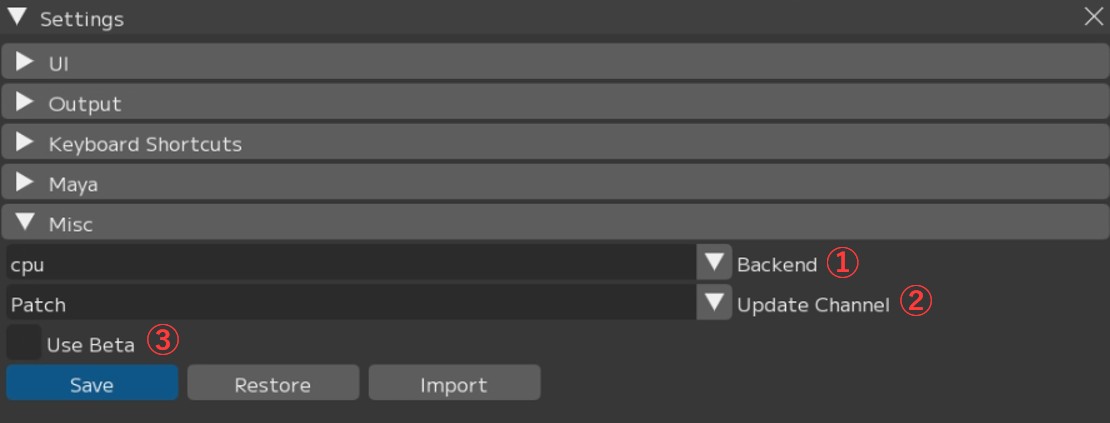
① Backend: Select the data processing method (cpu/cuda)
② Update Channel: Notification settings for FCS updates
- All: Receive update notifications for both major and minor versions
- Patch: Receive notifications for minor version updates only
- None: Do not receive version update notifications
③ Use Beta: Configure whether to use beta features. Distribution of beta versions has been discontinued.
Menu Descriptions - Table of Contents
- File: Session file management and basic operations
- Settings: File/Settings - Global environment settings and behavior options for FCS
- Window: Display and operation guide for each window
- Maya: Launching and linking with Maya
- View: Adjusting the workspace layout
- Explore: Browsing files in Windows Explorer from FCS
- Info: Version information and more