Installing FCS
FCS is installed using the installer.
The installer can be downloaded from here.
Installation Steps
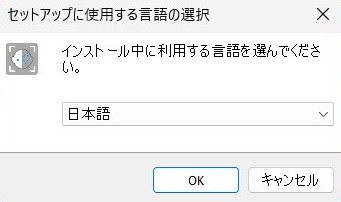
Set the language to be used in the installer.
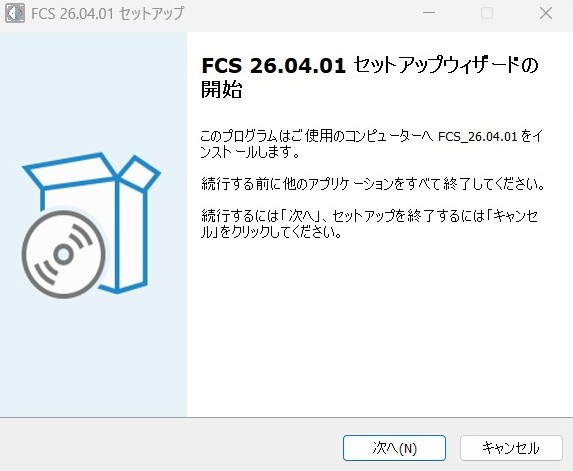
Begin the installation.
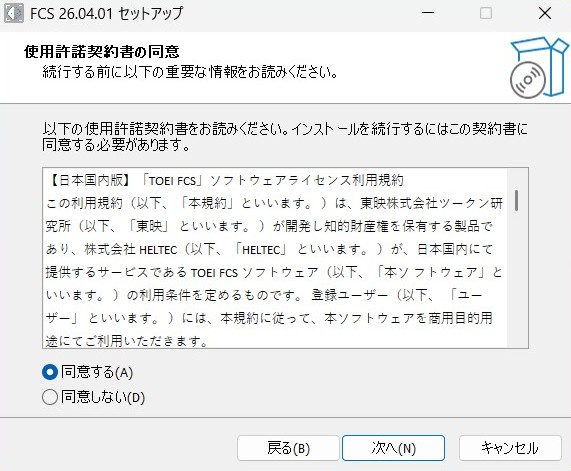
Accept the license agreement.
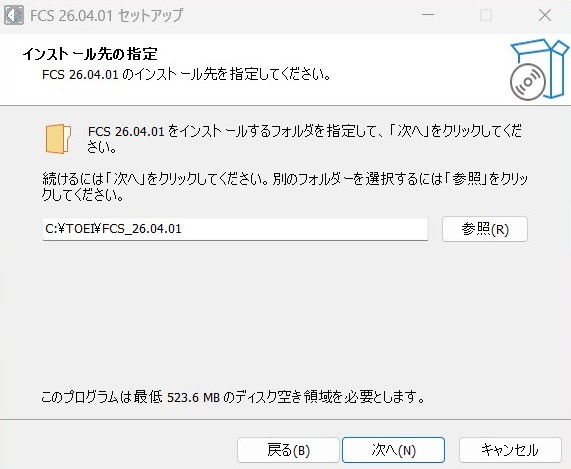
Specify the installation destination.
The default is C:\TOEI\FCS_”version”.
To change it, enter the path or select from the browse dialog.
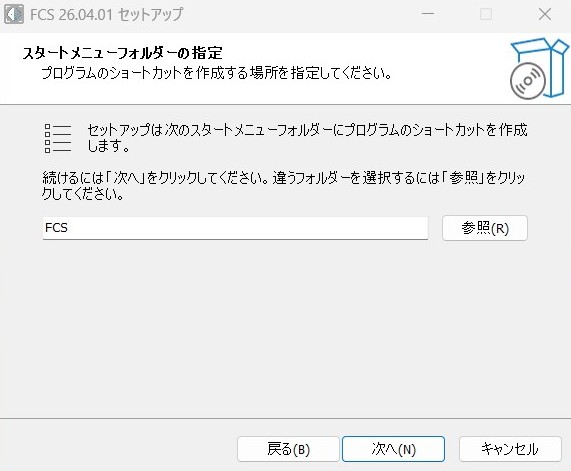
Specify the Start Menu folder. The default is [FCS].
To change it, enter the folder name or select from the browse dialog.
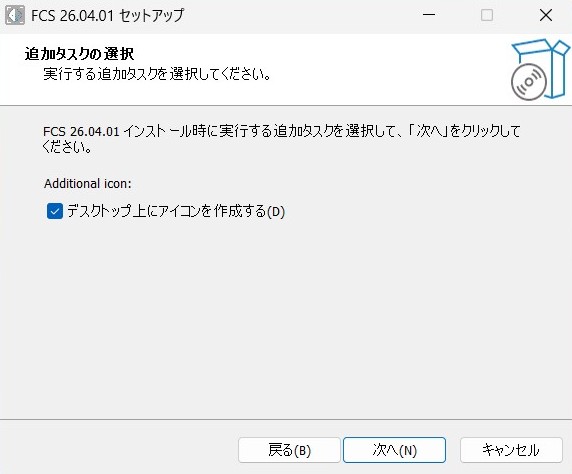
Check the box if you want to create a desktop icon.
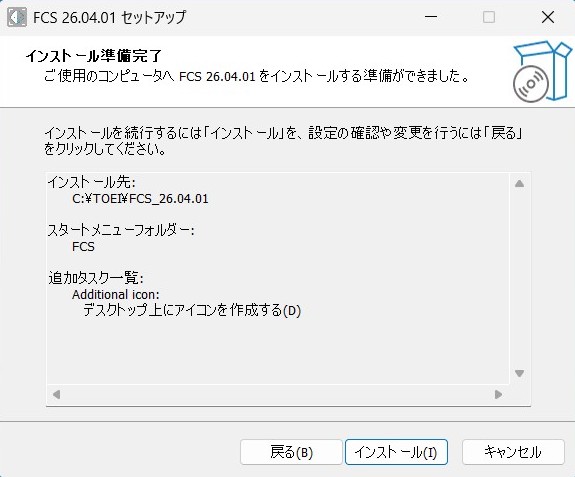
Review the installation settings and proceed with the installation if everything is correct.
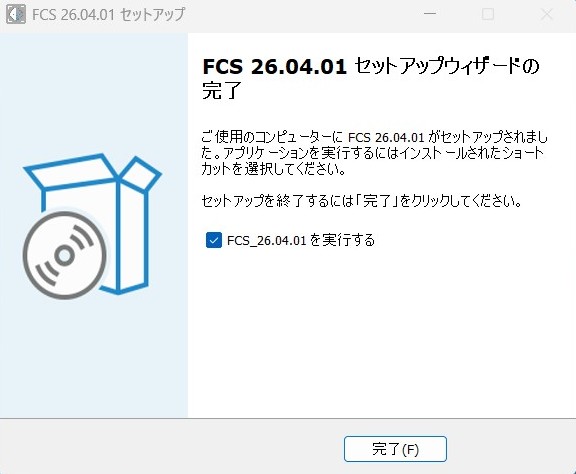
Check the box if you want to launch FCS immediately after completion.
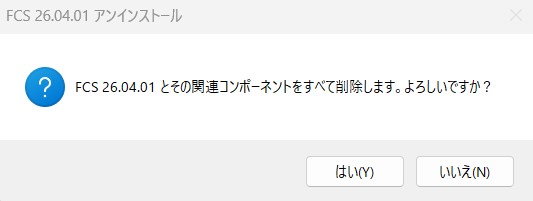
Uninstallation Steps
Run unins000.exe from the Start Menu or the folder where FCS is installed.

Select [OK] if there are no issues.