Launch FCS
These are the steps to follow after FCS has been installed.
If you have not yet completed the FCS installation, please refer to the Install FCS page.
Note
On the first launch, the application may be blocked by security software depending on your PC environment.
In that case, please contact us via the HELTEC website.
Entering the License
When launching FCS for the first time, you will be prompted to enter a license key.
Enter the license key in [New License] and press [Update].
After the license authentication is complete, you will be able to use FCS.
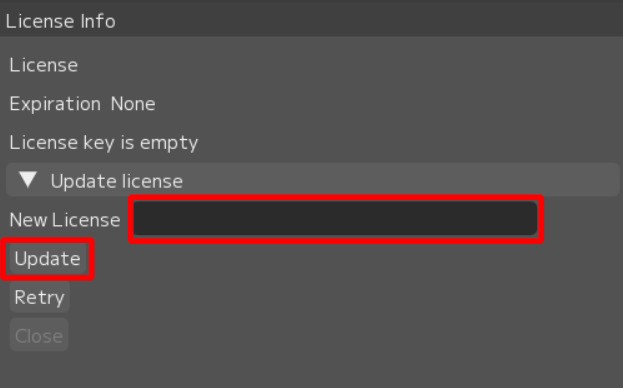
Renewing the License
After launching FCS, if the license has expired, the LicenseInfo dialog will pop up. Enter the new license key in [New License] and press [Update].
Note
Pressing Update may not work correctly in some cases.
In that case, please contact us via the HELTEC website.