Explore
You can open Windows Explorer directly from FCS.
This page explains which folders can be accessed and how to use this feature.
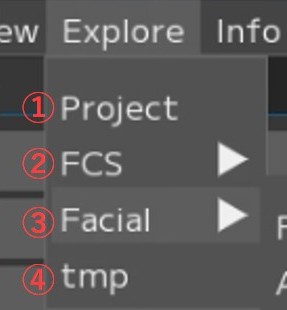
① Project: Open the project folder
② FCS: Open the FCS folder
③ Facial: Open the Facial folder
④ tmp: Open the user settings folder
where logs and other files are stored
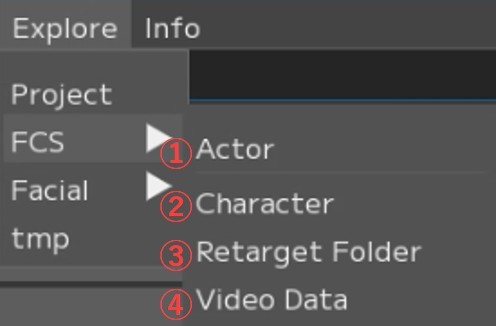
① Actor:
Open the Actor folder
② Character:
Open the Character folder
③ Retarget Folder:
Open the RetargetData folder
④ Video Data:
Open the VideoData folder
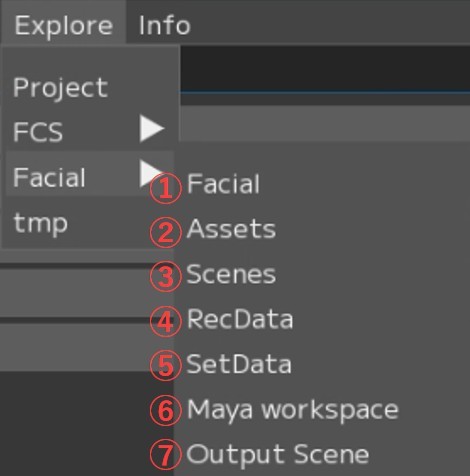
① Facial:
Open the Facial folder
② Assets
Open the Assets folder
③ Scenes:
Open the Scenes folder
④ RecData:
Open the RecData folder
⑤ SetData:
Open the SetData folder
⑥ Maya workspace:
Open the folder containing the Maya workspace
⑦ Output Scene:
Open the _Outputs folder
Menu Descriptions - Table of Contents
- File: Session file management and basic operations
- Settings: File/Settings - Global environment settings and behavior options for FCS
- Window: Display and operation guide for each window
- Maya: Launching and linking with Maya
- View: Adjusting the workspace layout
- Explore: Browsing files in Windows Explorer from FCS
- Info: Version information and more