Tips
This page describes useful tips and various features of FCS.
If there is no FCS camera in the scene, FCS creates a camera based on the position of the persp camera.
To always output playblasts at a consistent field of view, we recommend placing an image plane of the appropriate position and size in the scene in advance and saving it as a base scene.
*Before creating, check the FCS settings window File > Settings > ▼Maya to see how the camera name and image plane name are specified.
The following instructions assume the names fcs_cam and imagePlane are specified.
Creating a Base Scene
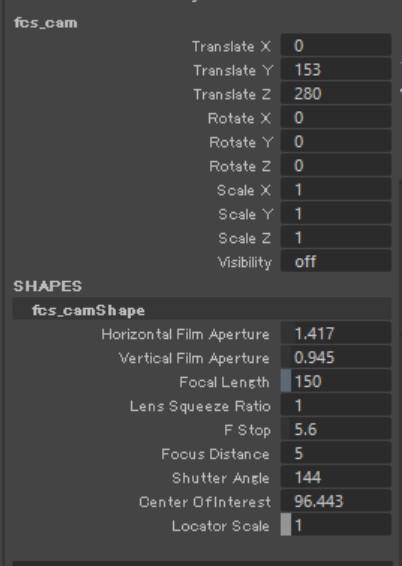
① Position the FCS camera so that the face model is centered.
Example attributes used: fcs_cam.translateY, fcs_cam.translateZ, fcs_camShape.focalLength
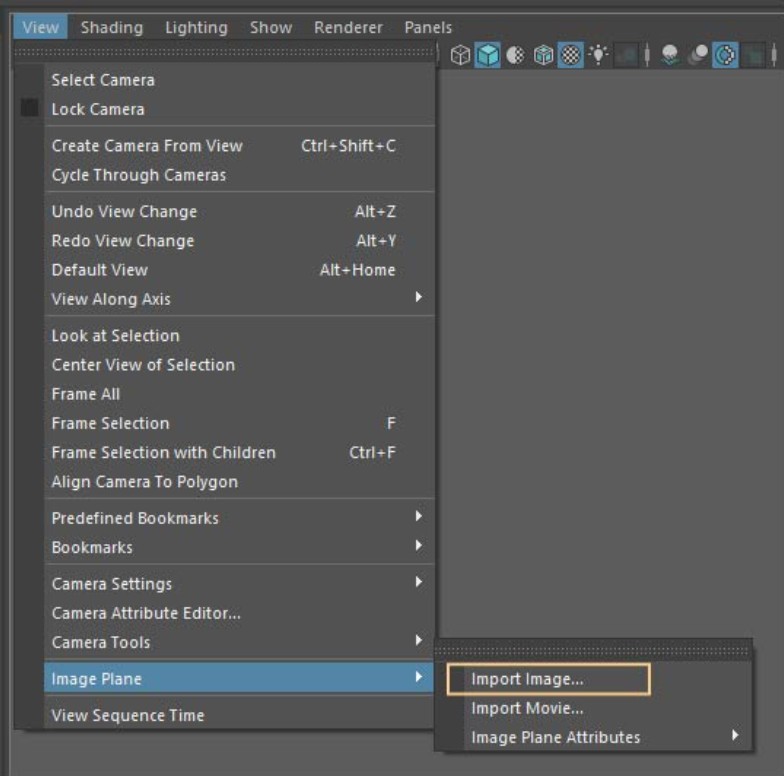
② With the FCS camera active, place the still image plane via View > Image Plane > Import Image…
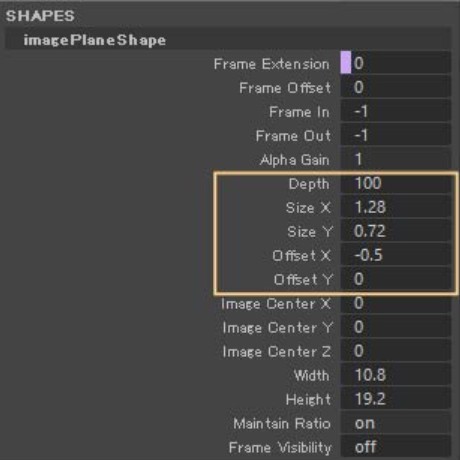
③ Resize the image plane to your preferred size and move it to the desired location.
Example attributes used: imagePlaneShape.depth, imagePlaneShape.sizeX, imagePlaneShape.sizeY, imagePlaneShape.offsetX, imagePlaneShape.offsetY
④ Set imagePlaneShape.useFrameExtension to ON (1) to play sequential still images.
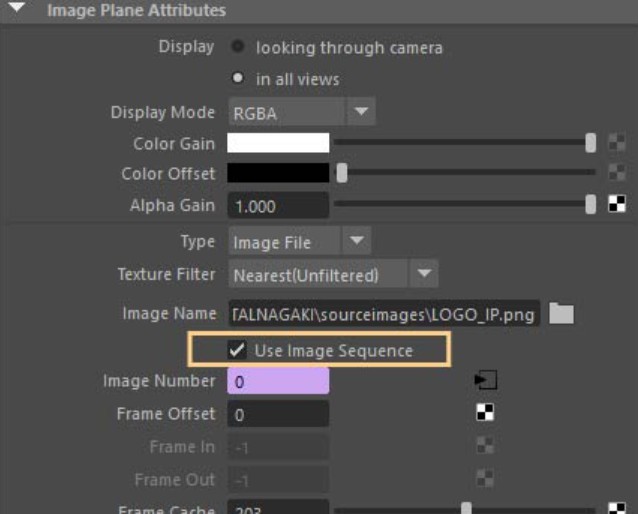
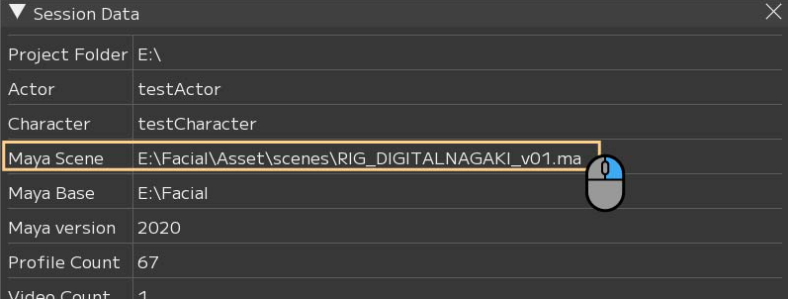
⑤ Save the Maya scene and register it in Maya Scene from File > Session▶ > Info…
How to Change the Layout
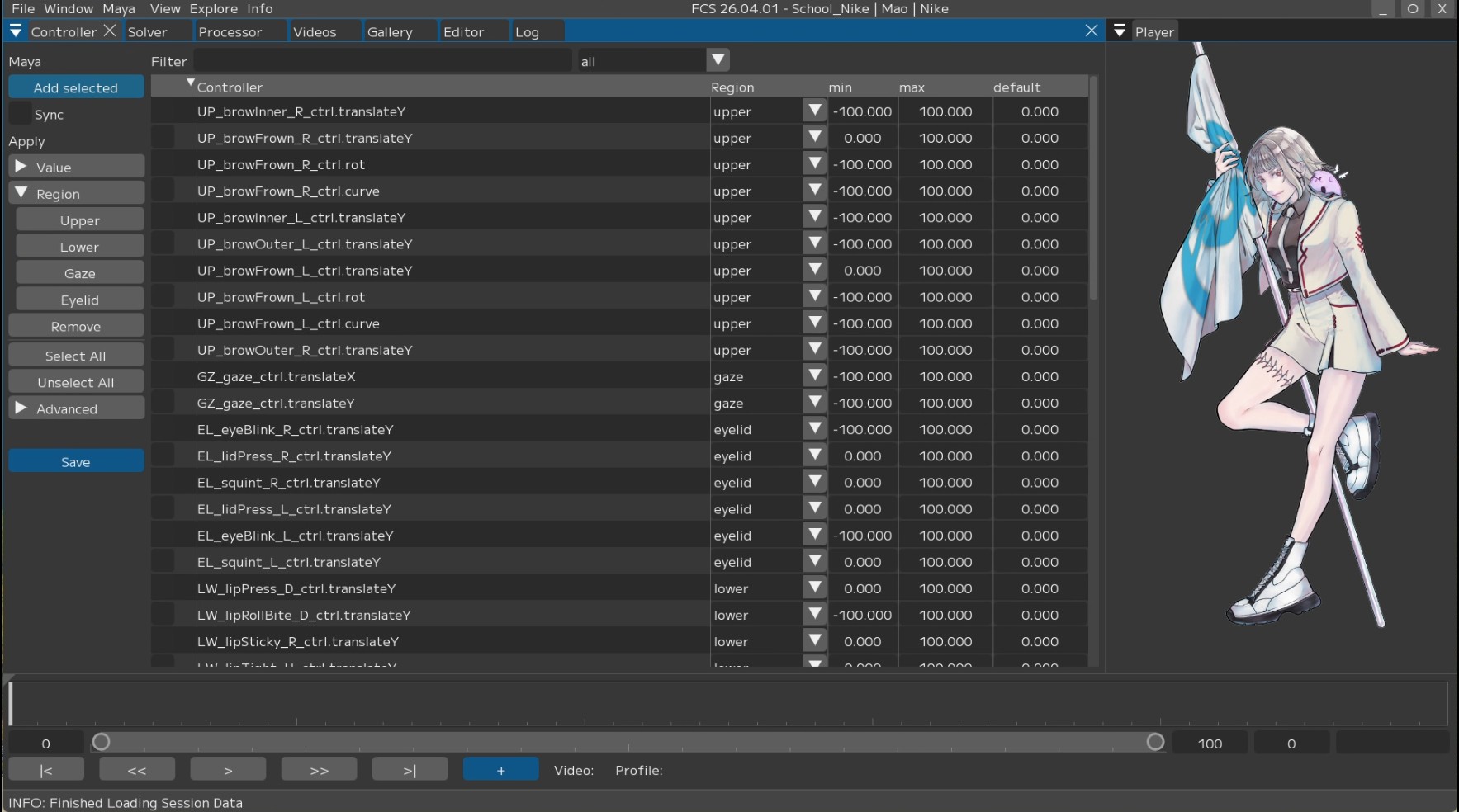
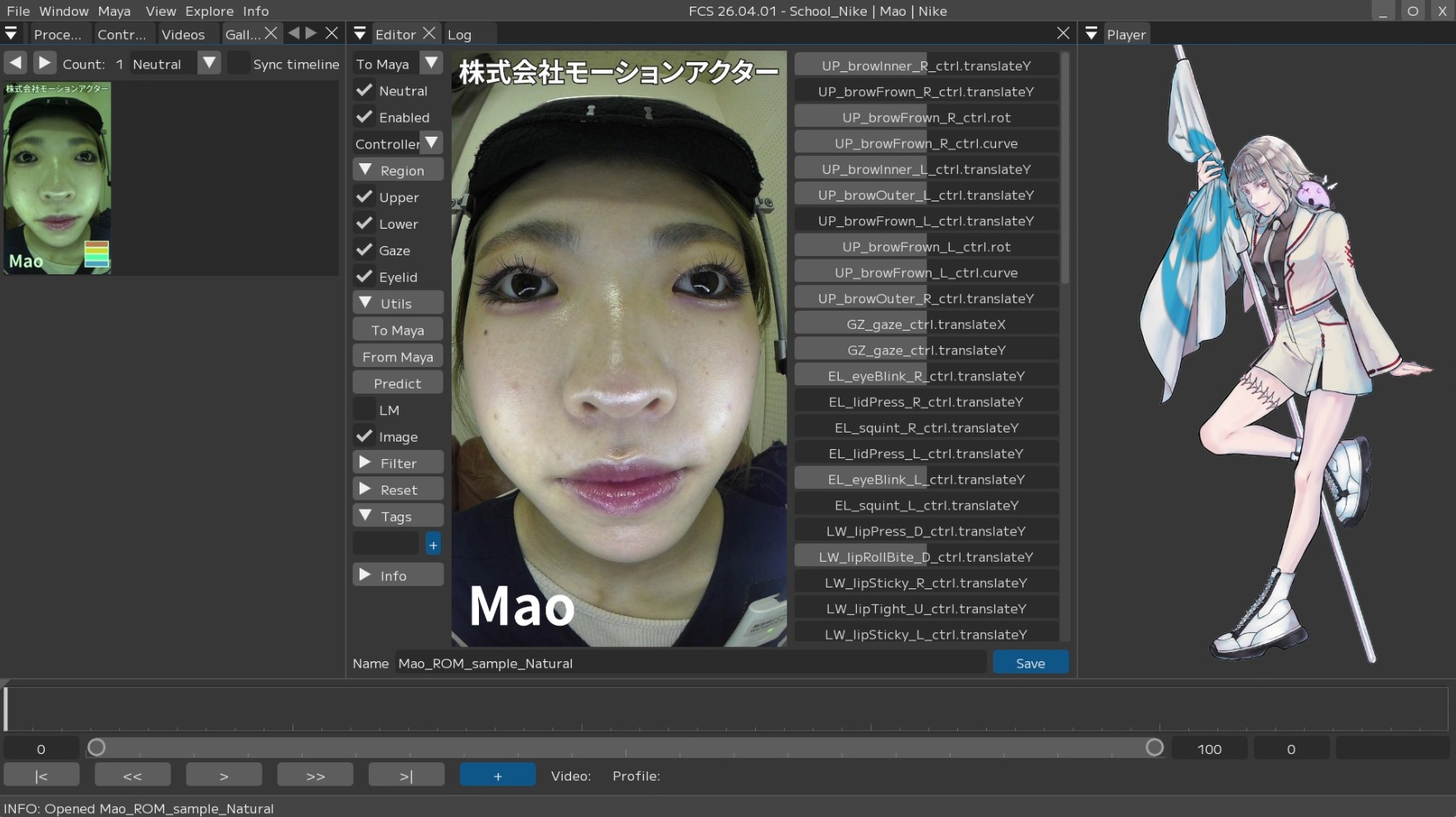
You can load layout presets from View window → Layout.
Each window can also be moved and arranged within FCS by drag & drop.
Please work with your preferred arrangement.
You can also save modified layouts from View window → Layout.
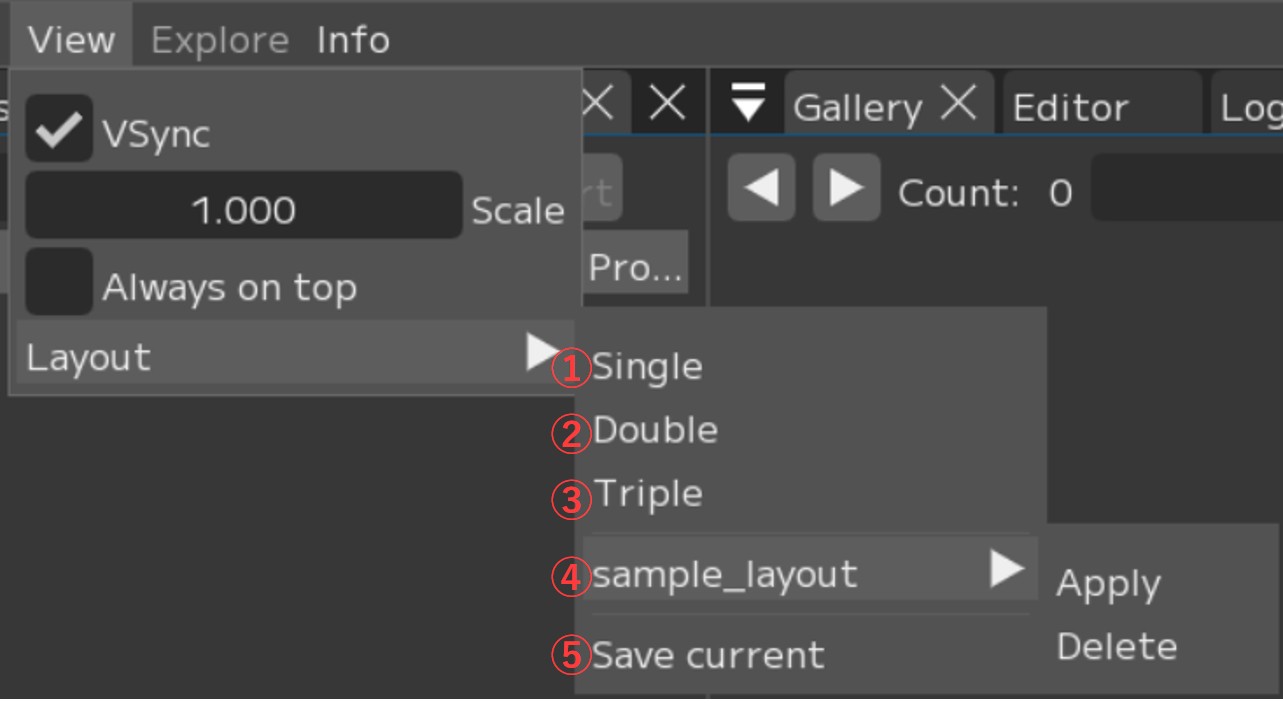
① Single: Switch to the Single layout
② Double: Switch to the Double layout
③ Triple: Switch to the Triple layout
④ Sample_Layout ▶: Select a custom layout registered with [Save current].
[Apply]: Switch to the saved layout.
[Delete]: Delete the saved layout.
⑤ Save current: Save the current layout with a name
① Single layout
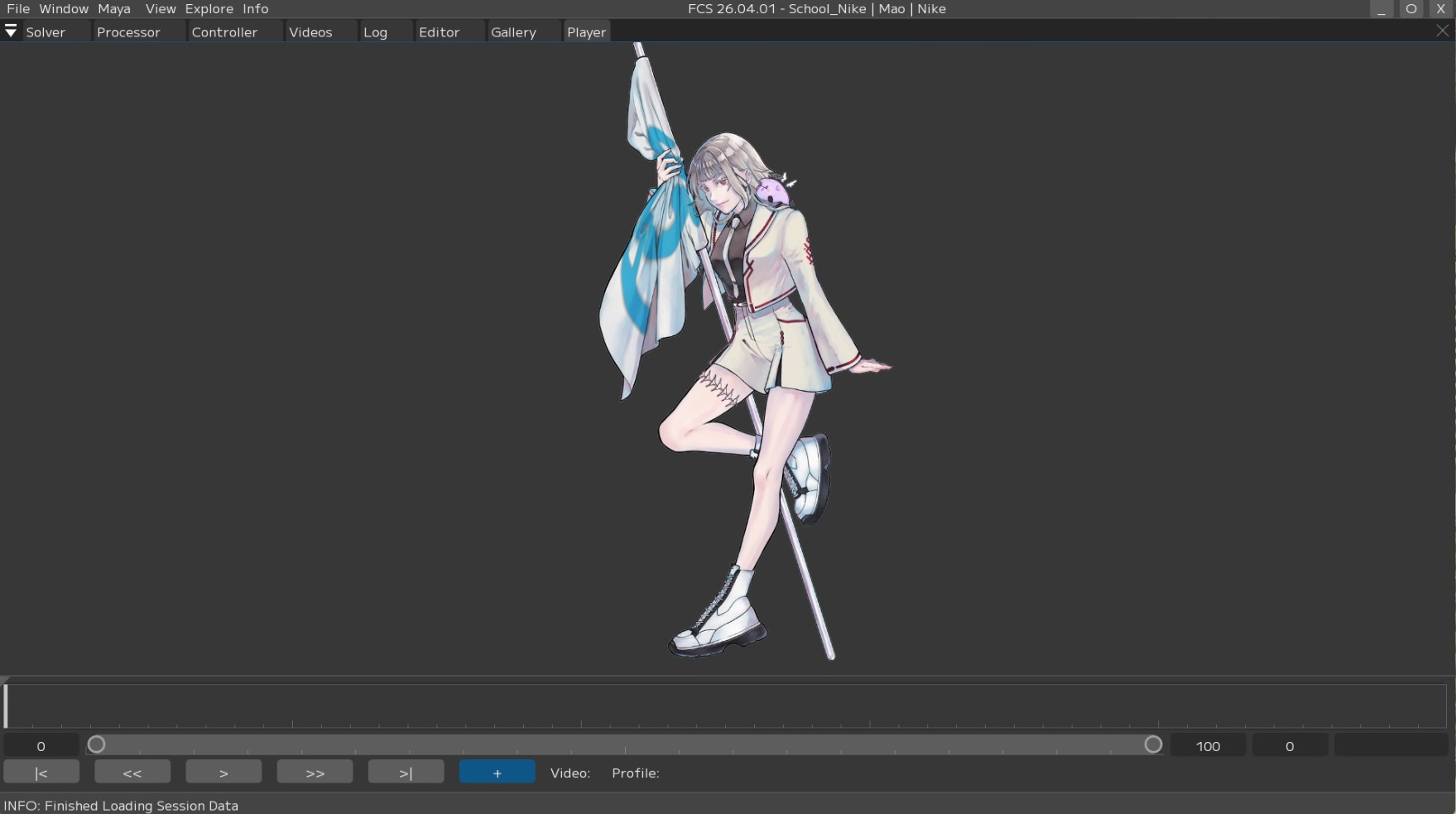
② Double layout
③ Triple layout
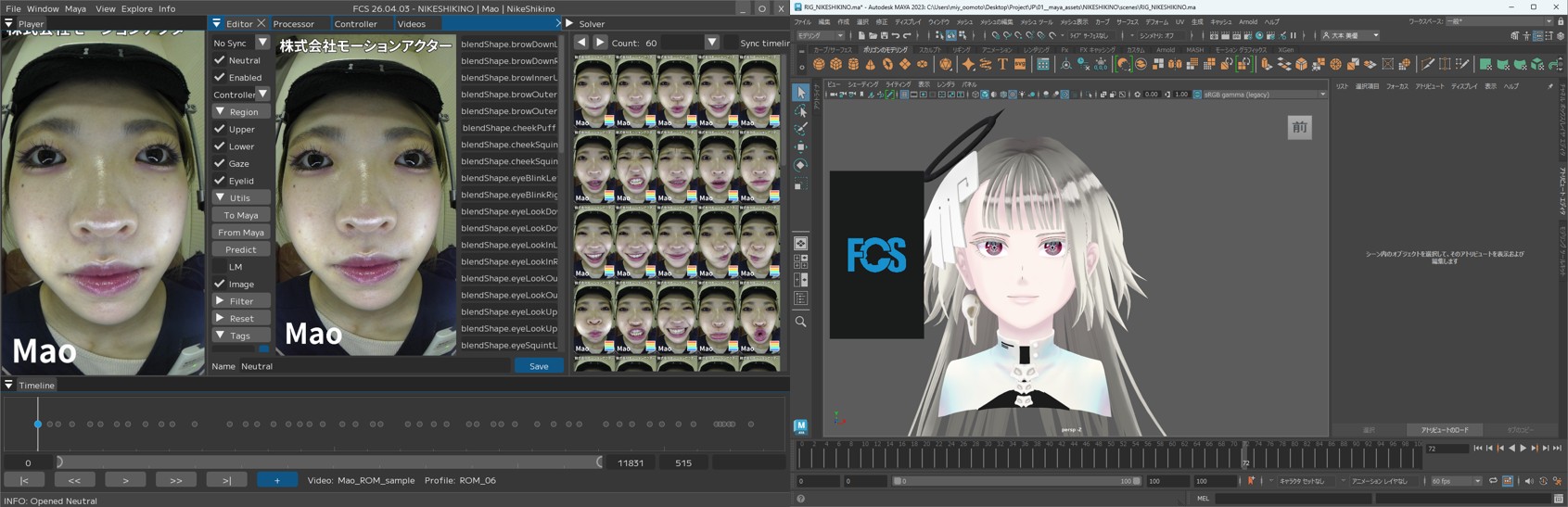
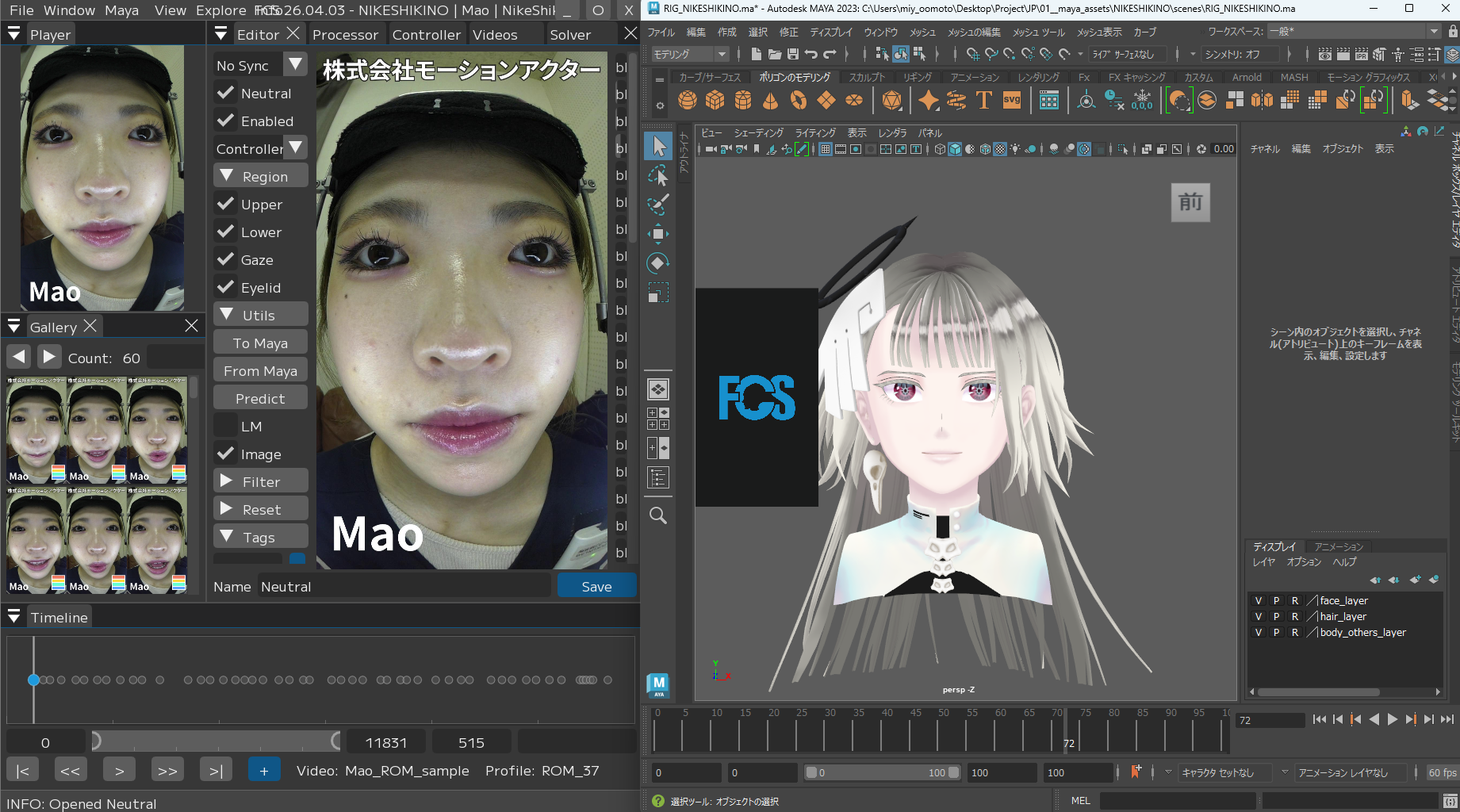
モニターの数や作業環境に合わせてカスタマイズしてください。
配置例(二画面)
配置例(一画面)
Note
For details on the View window, see User Guide/Menu/view.
Saved layout data is stored at the following path.
C:\Users\$USER\.fcs\Cortado\$FCS_VERSION\layouts\saved
FCS includes a Predict feature that automatically retargets from the Profiles you have created. After registering several Profiles, use Predict when adding another Profile to generate an expression based on the existing Profiles.
Warning
Predict’s automatic retargeting accuracy depends on the accuracy of the registered Profiles. Predict does not analyze the entire video.
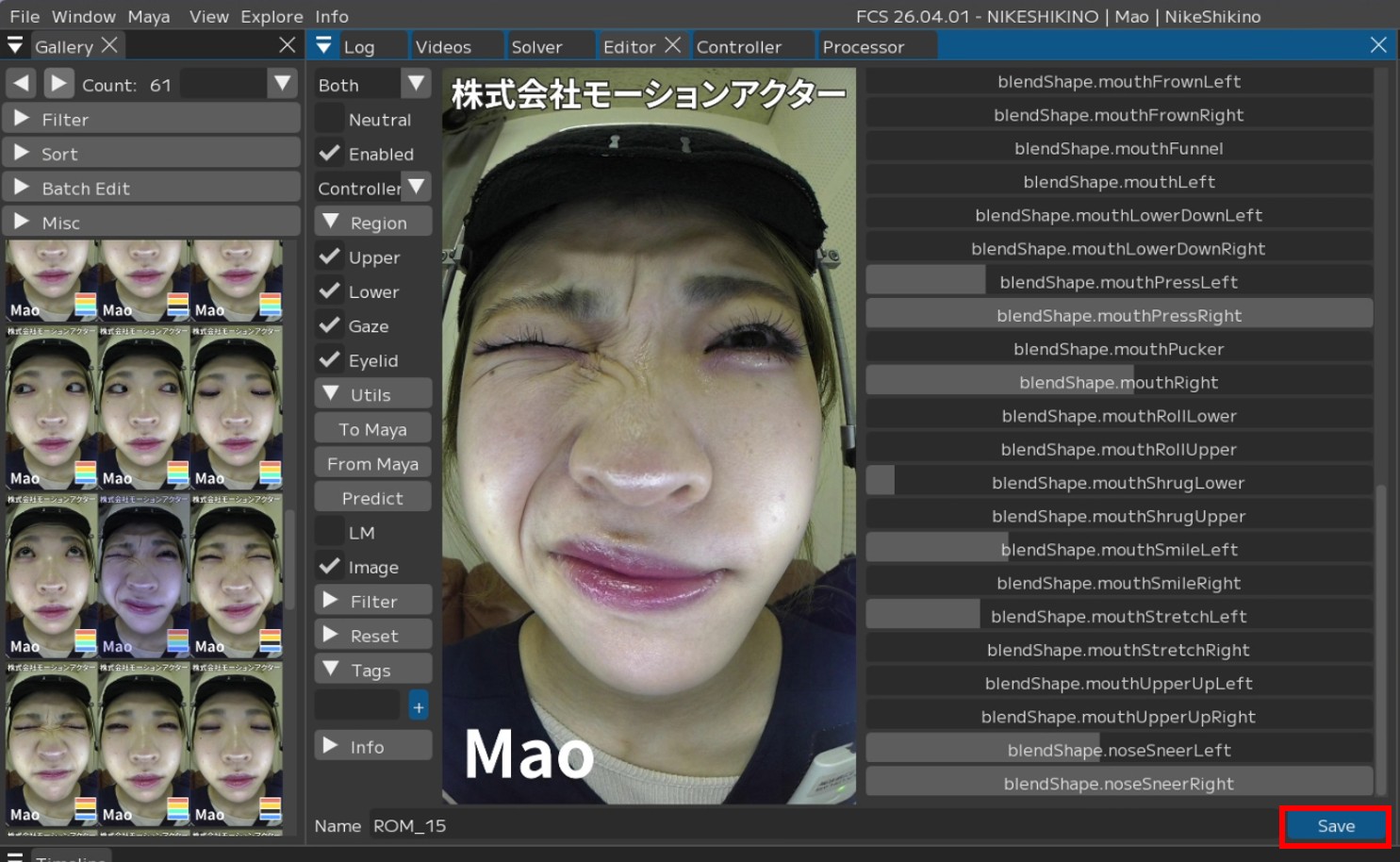
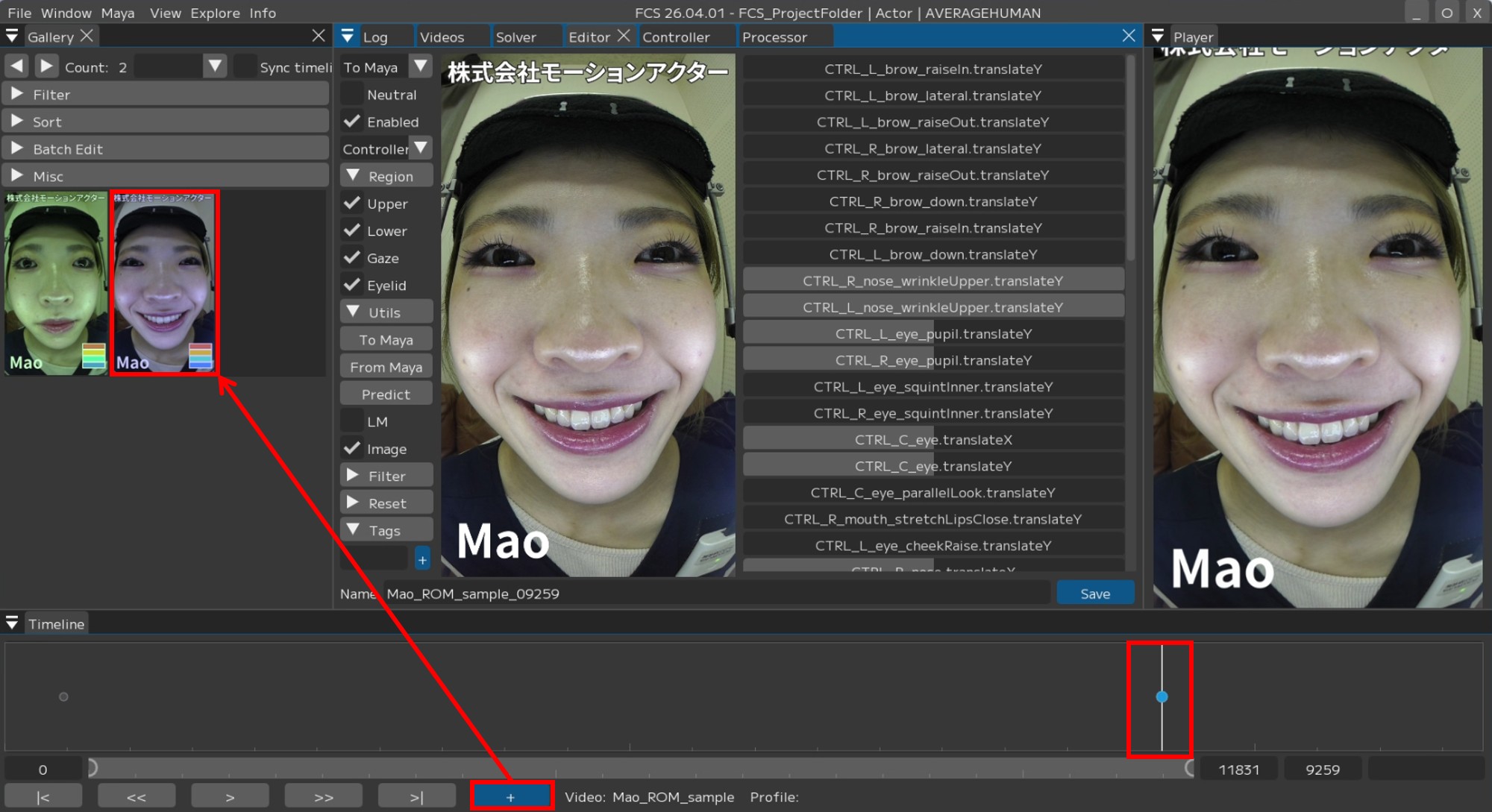
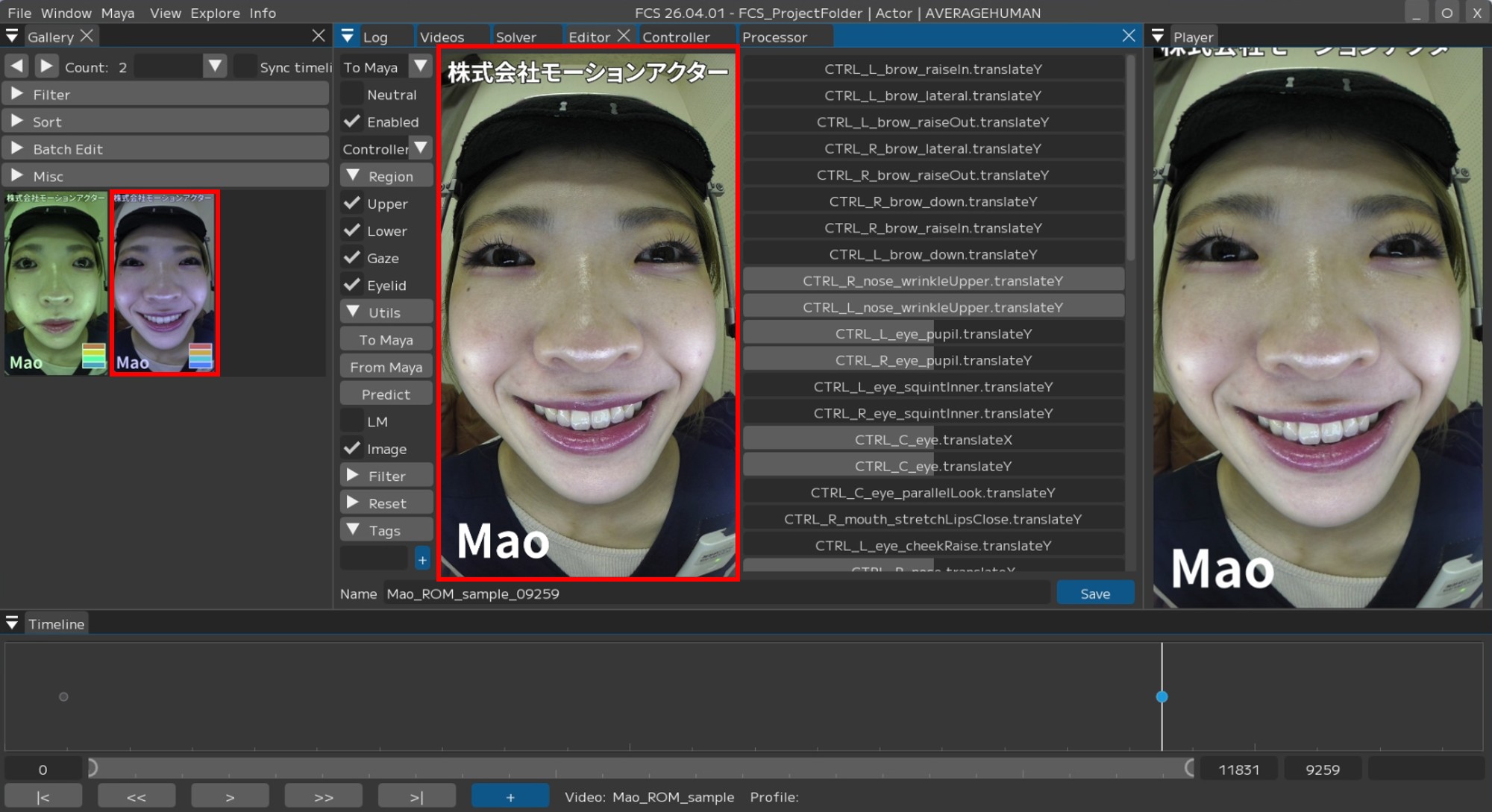
1. Move the slider in the Video Timeline window to the frame where you want to register an expression. Press [+] to add that frame’s image to the Gallery and open the Editor. Confirm that the image added to the Gallery matches the image shown in the Editor.
The image is added to the Gallery |
Confirm that the same image is displayed in the Editor |
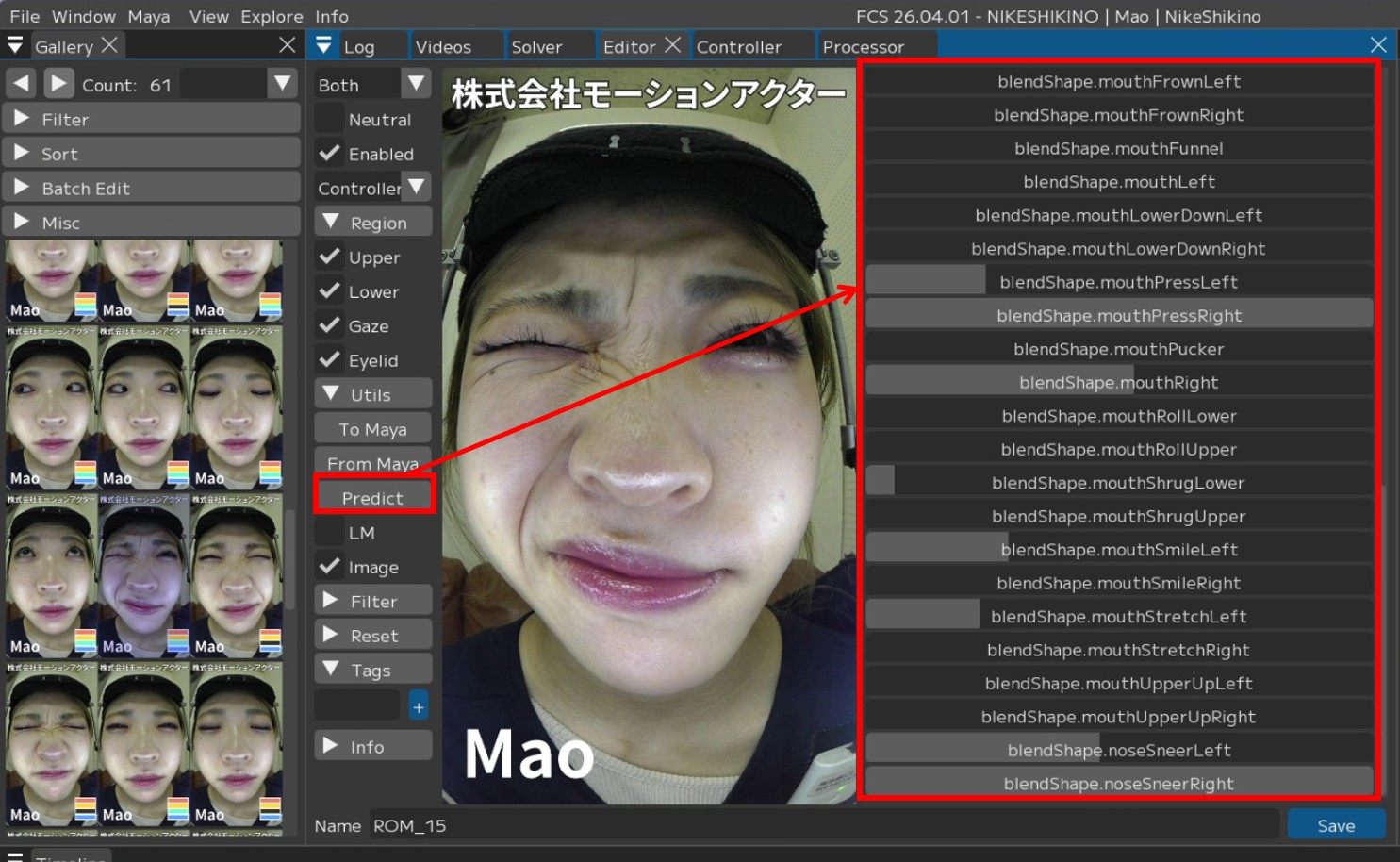
2. Run Predict. The values will change.
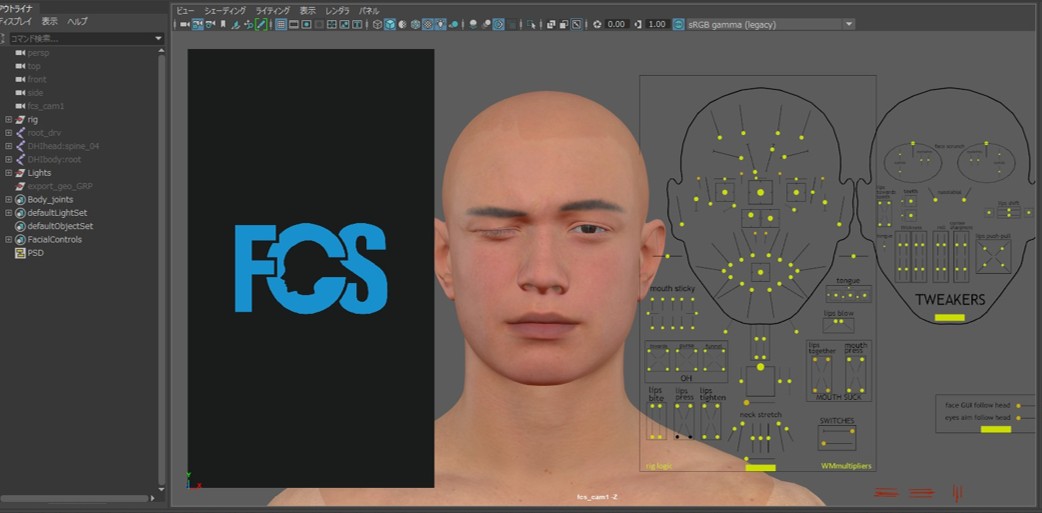
3. The Predict result appears in Maya. Make any necessary adjustments, and when the result is ready to register,
4. Click [Save].